


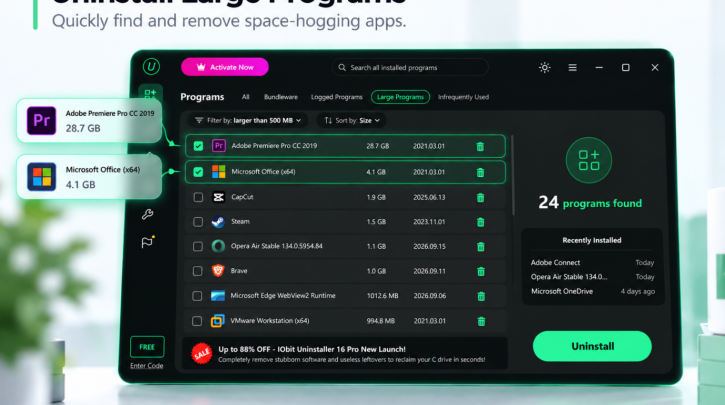
Over the years, I had installed plenty of apps that I barely used. Some were one-time downloads, others were trial programs, and many had become unnecessary. I started removing them to free up space, but deleting shortcuts didn’t uninstall the programs or remove all their leftover files. I decided to try IObit Uninstaller, a Windows uninstaller, to remove unwanted applications and clean up the files they left behind. Here’s how I used it to declutter my PC and give my system a fresh start.
I Didn’t Realize How Much Unused Software Was Sitting on My PC
Last weekend, I checked my installed programs because my PC was running short on storage. I sorted the unnecessary programs into five groups to determine which ones I could uninstall without any issues.
1. Forgotten apps: I found several programs I’d forgotten about, including a video editor from a 2024 project, a trial browser, and old tax software. They had been installed for years without serving any purpose, taking up storage I could reclaim.
2. Bloatware and trial programs: I seldom used the security trials and extra tools on my PC. Some ran background tasks and repeatedly promoted paid plans.
3. Duplicate utilities: I had installed multiple programs for the same tasks, including three ZIP extractors. I also found older components like Java and Silverlight that some of my current tasks no longer required.
4. Leftover files: Programs I had uninstalled through Windows Settings had left behind cached data, old settings, and other files in my AppData folders. These leftovers added to the clutter on my PC.
5. Unwanted browser components: I noticed search extensions and shopping tools I hadn’t knowingly installed. They made my browser less organized and raised privacy concerns.
Why Uninstalling an App Doesn’t Always Feel Like a Complete Cleanup
I expect Windows Settings to remove all related files when I uninstall a program. However, some files and settings may remain after the uninstallation. Since Windows uses the program’s own uninstaller, anything it fails to remove can stay on the PC and take up storage space over time. I focused on four types of leftovers that could take up space and clutter my system.
1. Residual files: Old cache files, logs, and temporary data left behind by uninstalled apps. I found files from programs I hadn’t used in months.
2. Leftover folders: Some apps left folders in Program Files and AppData after removal. These folders often contained outdated or unnecessary files.
3. Configuration data: Saved preferences, custom settings, and user profiles remained even after I removed the programs. I no longer needed settings from apps I had stopped using.
4. Registry entries: Some uninstallers left behind registry entries associated with removed programs. These entries may be unnecessary but don’t always slow down Windows.
I learned that Windows uninstallations can leave behind related files.
Why I Chose IObit Uninstaller for My PC Cleanup
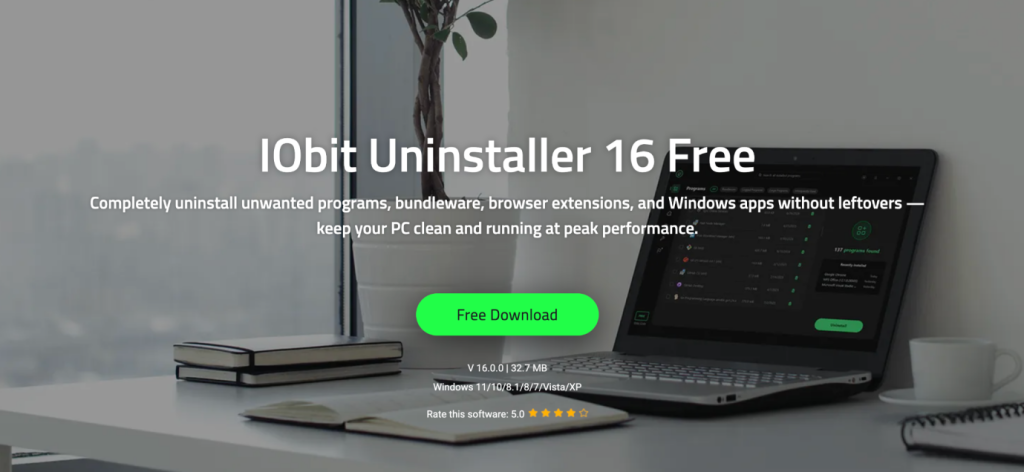
After finding so many leftover files, I wanted an easier way to remove unwanted programs and clean up my PC. I decided to try IObit Uninstaller 16 Free to make removing programs and cleaning up leftover files easier.
I tried IObit Uninstaller to remove unnecessary programs and check for remaining data. Its improved scan feature helped me identify residual data that might otherwise remain on my PC.
The redesigned dashboard also made program management easier. I could sort installed apps by size, installation date, and usage frequency to find programs I no longer needed.
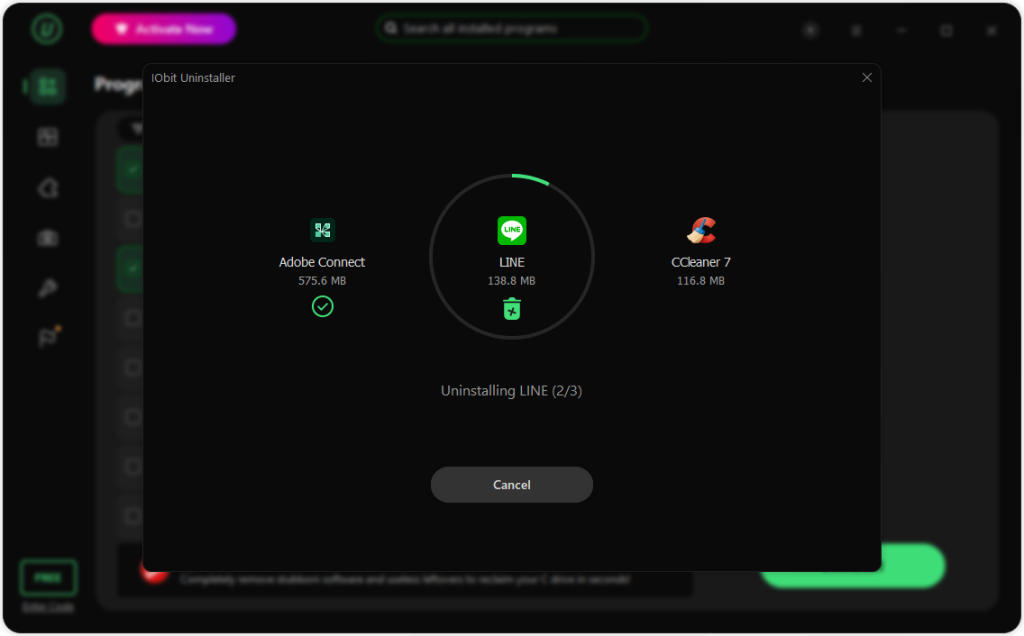
Batch Uninstall was another useful feature. I could select several unwanted applications and remove them in a single process. This made the cleanup process more convenient.
I also found several useful maintenance tools in one place. Bloatware Remover helped me find unwanted pre-installed apps. Software Relocator provides an option to move supported software to another drive, and Software Health checks for unwanted browser extensions.
I chose IObit Uninstaller 16 Free because it offers more than basic program removal. Its additional tools helped me manage unwanted software and find leftover files from one interface.
How I Used IObit Uninstaller to Clean Up My PC
To simplify app management, I tried IObit Uninstaller 16 Free. Its redesigned dashboard allowed me to organize installed programs by size, installation date, and usage frequency. Here’s how I used it:
Step 1: I opened All Programs, selected multiple apps, and clicked Batch Uninstall. I enabled restore point creation and automatic cleanup of leftover files before starting.
Step 2: I ran scan to check for residual files, folders, and registry entries. I reviewed the scan results and cleared unnecessary items.
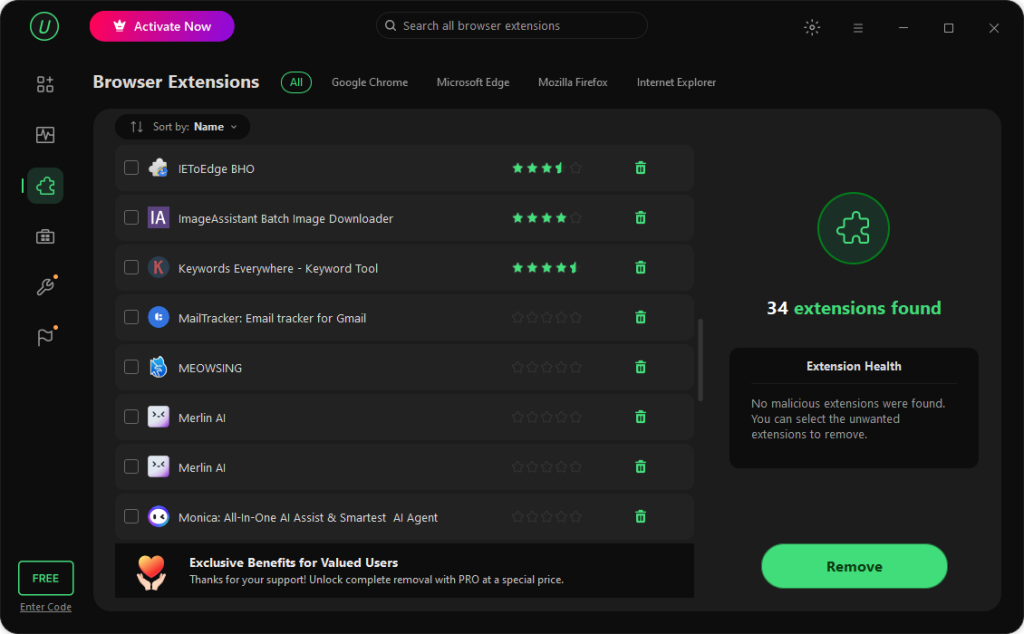
Step 3: I checked Browser Extensions and removed unwanted add-ons and toolbars.
Step 4: I opened Toolbox > Bloatware Remover and uninstalled pre-installed apps I no longer needed.
The Difference I Noticed After Cleaning Out My PC
Using IObit Uninstaller 16 Free helped me clear disk space and remove apps I rarely used. I also cleared leftover files and unwanted browser extensions. This made my programs easier to manage and reduced the pop-ups I encountered. Overall, my PC felt cleaner and more organized.
IObit Uninstaller vs. Windows’ Built-In Uninstaller
When I compared my old routine with native Windows tools to my experience with a dedicated tool, I found that the built-in Windows uninstaller is passive and relies entirely on the app’s own code to clean things up. In contrast, a specialized utility takes an active, aggressive approach to deep-cleaning the system.
To see exactly how they stack up based on my cleanup process, I mapped out their key differences:
| Feature | Windows’ Built-In Uninstaller | IObit Uninstaller 16 Free |
| Primary Process | Runs the basic, developer-provided uninstallation script. | Runs the script, then automatically triggers a secondary deep scan. |
| Leftover File Cleanup | Leaves configuration data, AppData caches, and log folders behind. | Uses an improved scan engine to automatically delete residual files. |
| Registry Maintenance | Ignores leftover, orphaned registry paths. | Scans the Windows Registry to purge dead configuration lines and invalid keys. |
| Workflow Efficiency | Forces you to uninstall applications one by one manually. | Features a batch uninstall option to queue and remove multiple apps at once. |
| Browser Component Management | Cannot detect or isolate web browser extensions. | Includes a dedicated dashboard to strip away rogue toolbars and tracking plug-ins. |
Conclusion
I cleared unwanted programs and residual files to make more room on my PC. IObit Uninstaller simplified the cleanup with batch uninstallation and tools for managing browser extensions and pre-installed apps. If you’re looking for an uninstaller for Windows with additional cleanup tools, IObit Uninstaller is worth a look. For anyone seeking an uninstaller for Windows that offers more than standard removal options, it’s worth a look.
FAQs
Q1. Can IObit Uninstaller remove stubborn programs that refuse to delete?
Yes. If an application is corrupted or missing its default uninstallation script, the standard Windows tool will throw an error and fail. This tool includes a Force Uninstall option in its toolbox that lets you target the program’s main folder or file shortcut, bypassing the broken script to shred the application and its registry data completely.
Q2. Can deleting leftover files damage Windows?
Removing ordinary leftovers from uninstalled applications is usually safe, but deleting files that belong to Windows or other active programs can cause problems. Check the file paths before removing them.
Q3. Is it safe to delete registry entries using a third-party uninstaller?
Yes, as long as you use the built-in safety nets. Before running the deep clean, I made sure to check the option to create a system restore point. This gives you a reliable fallback option, so if deleting an orphaned registry key causes stability issues, you can instantly roll your system back to its exact previous state.