



My laptop is four years old, and last winter it started to show its age. Chrome tabs took forever to load, File Explorer froze for a few seconds every time I opened a folder, and my once-instant boot time crept past a minute. My first instinct was to price out a new SSD or more RAM, but after checking my budget, I decided to try something cheaper first: software-based optimization. I spent about three weeks actually using Advanced SystemCare as my main PC cleaner, running it on the same laptop every few days and taking notes on what actually changed. This article walks through exactly what I did, what I saw on screen, and what results I got, so you can judge for yourself whether a Windows cleaner is worth trying before you spend money on new parts.
Why I Looked at Software Before Hardware
Before buying anything, I wanted to understand why my computer had slowed down in the first place. A few years of daily use had left behind a mess I couldn’t see: leftover temp files from installers, broken shortcuts pointing to programs I had long since removed, a bloated registry, and a startup list packed with background apps I never asked for. None of that shows up when you glance at Task Manager, but it adds up. That’s what pointed me toward a cleaning and optimization tool instead of a hardware upgrade, and Advanced SystemCare 19 Free kept coming up as one of the more established options, so I installed it and got to work.
First Look: The Care Dashboard
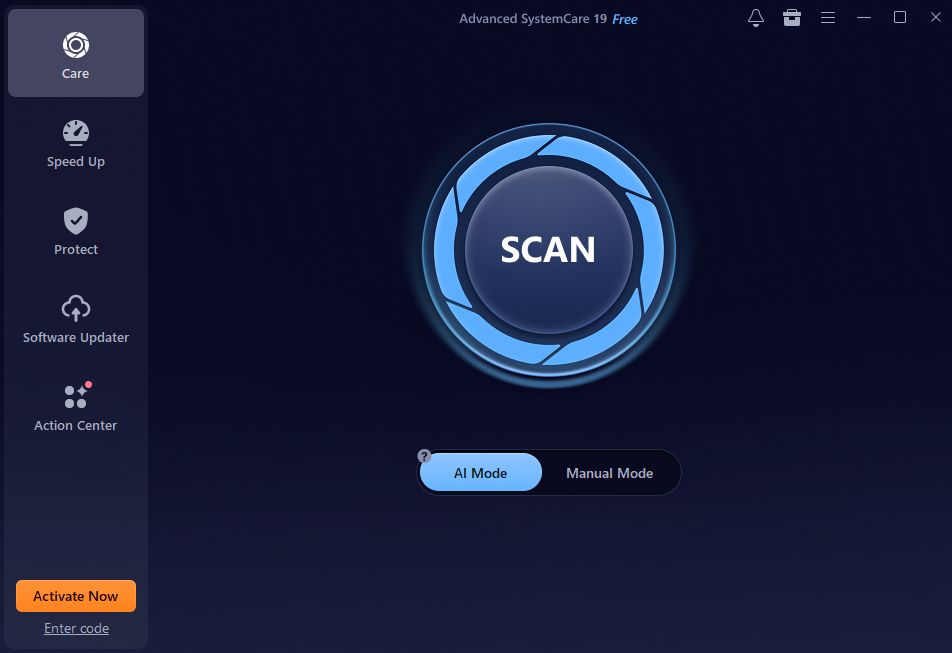
The main screen is refreshingly simple. On the left there’s a sidebar with Care, Speed Up, Protect, Software Updater, and Action Center. In the center is a single large SCAN button, and underneath it a toggle between AI Mode and Manual Mode. I appreciated that the interface didn’t bury the main function under menus, since I wanted to start cleaning right away, not hunt for the right screen.
Choosing Between AI Mode and Manual Mode
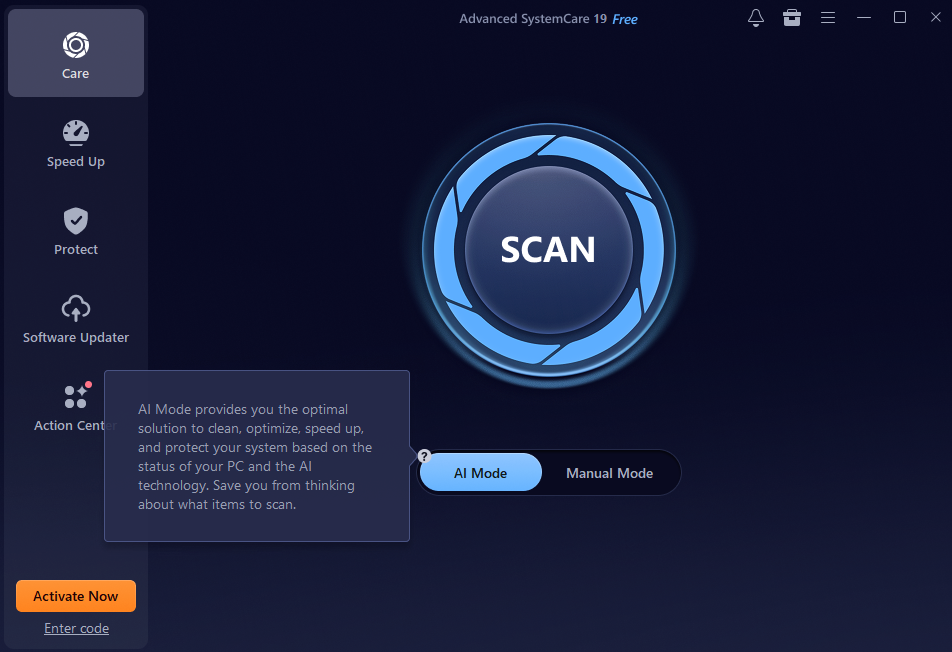
The first real decision the program asks you to make is which mode to scan in. Hovering over AI Mode brought up a tooltip explaining that it automatically picks the best combination of cleaning, optimization, speed, and protection settings based on my PC’s current status, so I wouldn’t have to decide what to scan for myself.
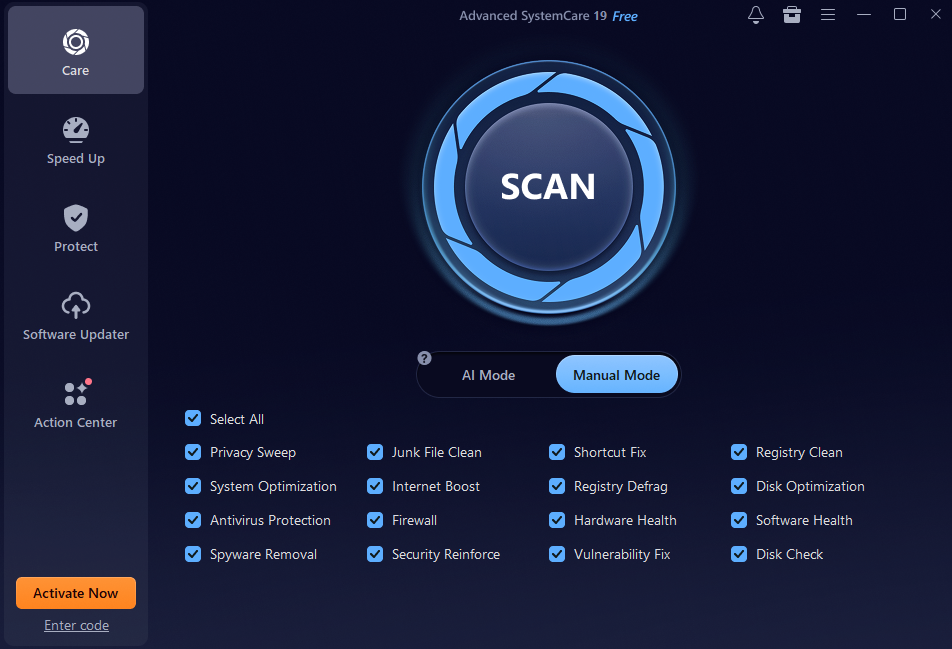
For my first run I switched to Manual Mode instead, mainly because I wanted to see exactly what categories were being checked. Manual Mode lays out every item as a checklist: Privacy Sweep, Junk File Clean, Shortcut Fix, Registry Clean, System Optimization, Internet Boost, Registry Defrag, Disk Optimization, Antivirus Protection, Firewall, Hardware Health, Software Health, Spyware Removal, Security Reinforce, Vulnerability Fix, and Disk Check, all selected by default under a Select All option.
Watching the Scan Do Its Work
Once I hit Scan, the left panel switched into a live progress list while the right side showed a percentage counter and the exact file being checked in real time. Within the first few minutes it had already flagged 4,426 privacy traces, 632 junk files, 9 invalid shortcut, and 23 registry entries, and it kept counting while it moved on to spyware threats, showing me the specific path it was scanning.
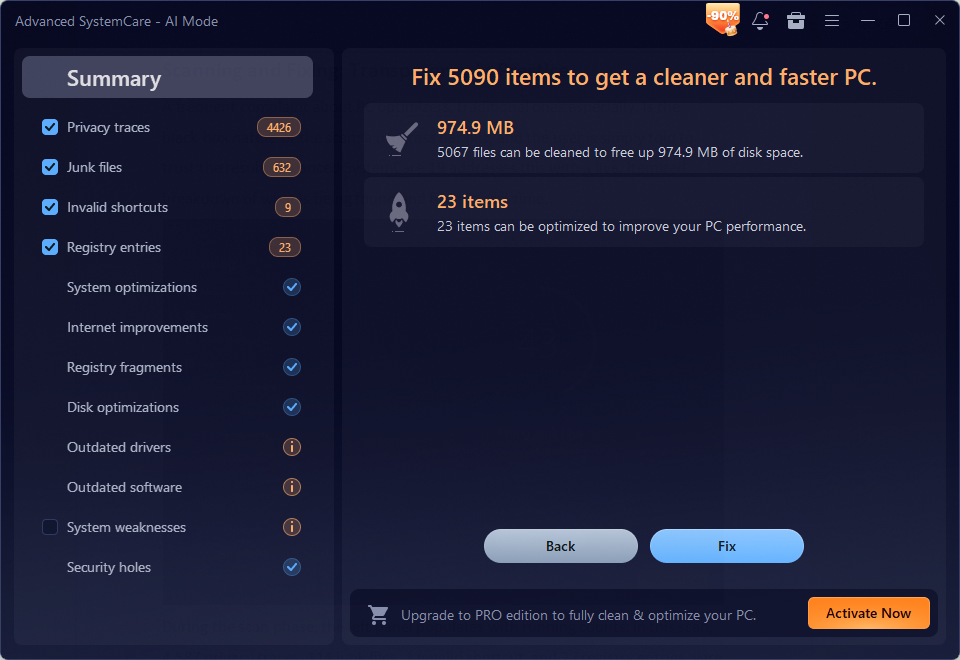
What I liked here as someone who’s used other cleaners before is the transparency. I wasn’t just told to trust a black box; I could see the running counts and the exact files being processed, which made it easier to trust the final numbers.
Fixing What the Scan Found
After the scan finished, I clicked Fix, and the interface switched to a Fixing view that mirrored the scanning screen; each category checked off as it was resolved, starting with privacy traces and junk files, and a live progress note showing which file was currently being cleaned, such as an old ngen.log file buried in the .NET Framework folder.
Also Read: Best Email Forwarding Services
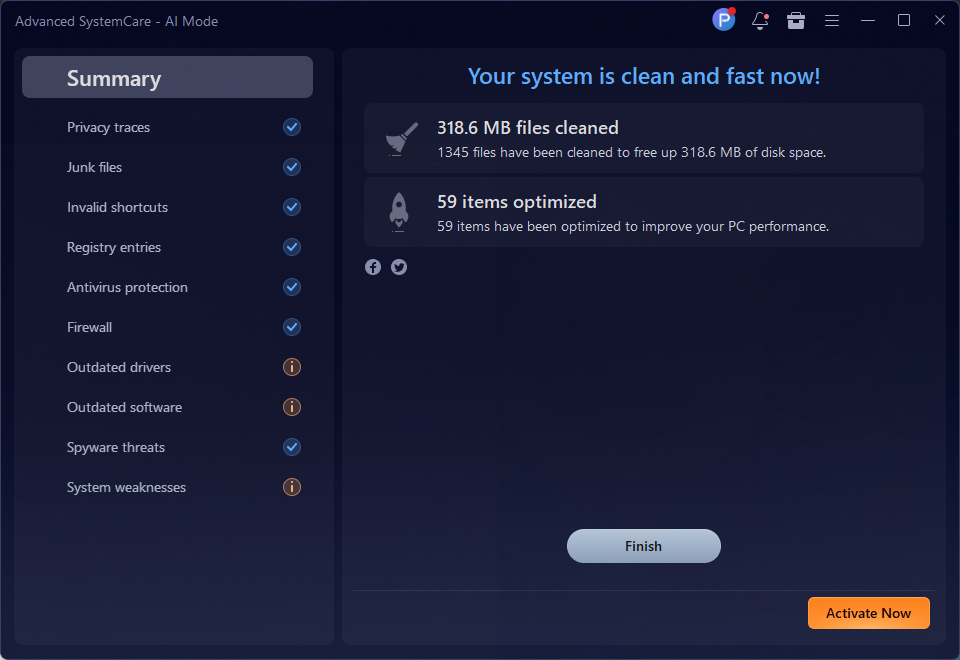
The whole fix step took under two minutes on my laptop. When it finished, a clean summary screen confirmed the result: 59 files cleaned, freeing up 318.6 MB of disk space on that particular pass, with every category on the left marked complete.
The Speed Up Tab: Where I Saw the Real Difference
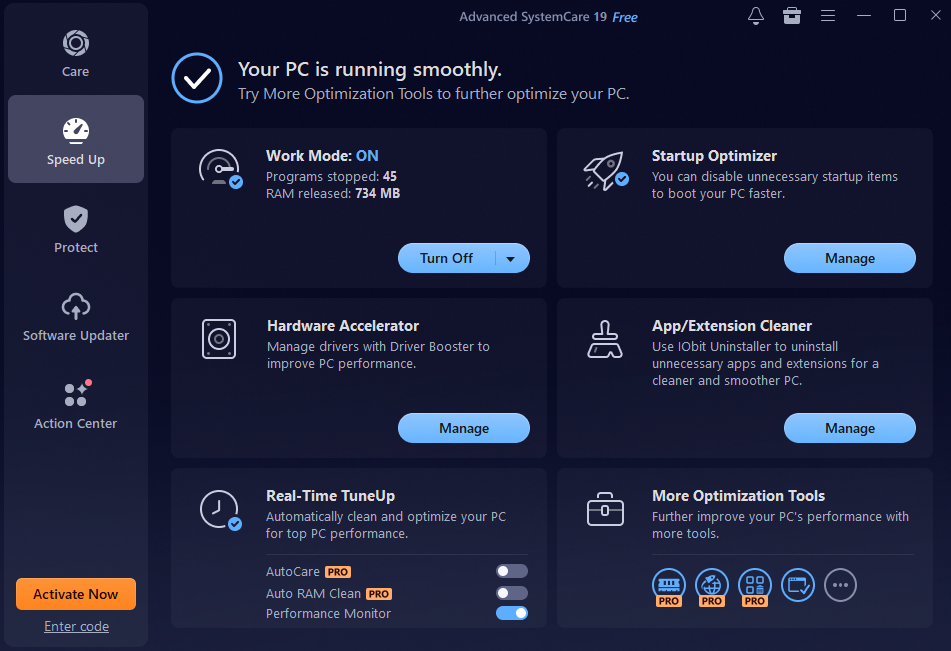
Cleaning junk files matters, but the Speed Up tab is where I noticed the most practical change in day-to-day use. Turning on Work Mode stopped 45 background programs and released 734 MB of RAM immediately, and I could feel the difference switching between apps afterward. The same screen also offers a Startup Optimizer to manage which programs launch at boot, a Hardware Accelerator that hands driver management off to Driver Booster, and an App/Extension Cleaner for removing bloatware I no longer used.
A Quick Check on Protection and Updates
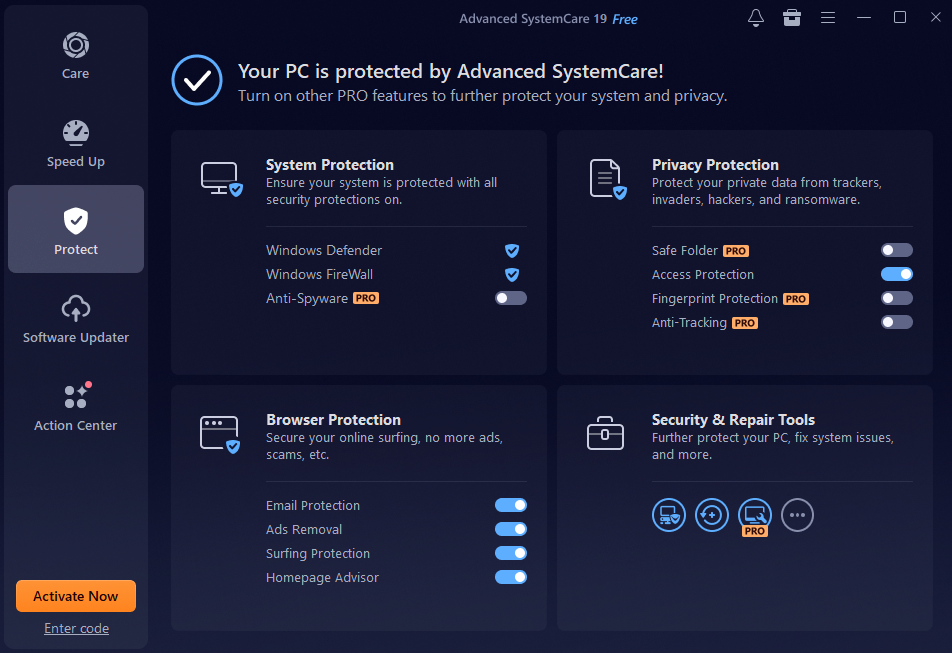
I also spent time in the Protect tab, which confirmed Windows Defender and Windows Firewall were active and gave me toggles for browser-level protections like ad removal and email scanning, and in Software Updater, which scanned my installed programs and confirmed everything from Chrome to WinRAR was current. Neither tab replaced my existing antivirus, but both gave me a quick, centralized status check I wasn’t getting elsewhere.
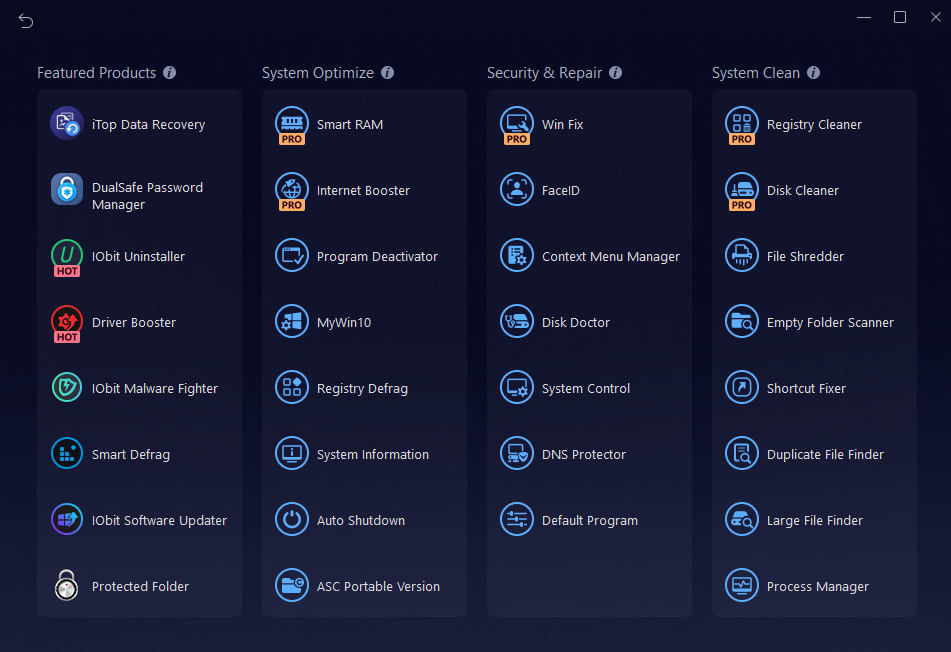
For anyone who wants to go further, the Toolbox screen lists roughly twenty additional utilities across System Optimize, Security & Repair, and System Clean categories, from Smart RAM and Registry Defrag to a Duplicate File Finder and Large File Finder, useful if you eventually want to dig into a specific problem area.
What Actually Changed After Three Weeks
By the end of my trial period, boot time had dropped noticeably, background RAM usage stayed lower thanks to Work Mode, and File Explorer stopped hanging on folder opens. None of this matched what a new SSD would have done, but it closed a meaningful part of the gap, without spending a cent on parts.
If your PC has slowed down gradually rather than suddenly, and you haven’t cleaned up junk files, startup programs, or the registry in a while, running a PC cleaner like this before shopping for hardware is a reasonable first step. It won’t turn an old laptop into a new one, but in my experience it recovered a real, noticeable amount of speed for zero cost, and that made it worth the time I put into testing it.